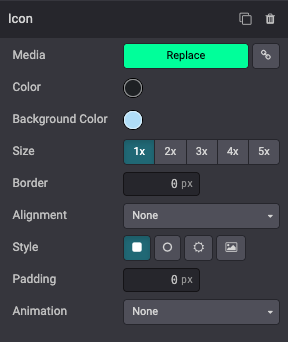
媒体
在本章中,我们将了解如何在 Odoo 中包含图像、视频或图标等媒体元素。
图片
将图像记录在数据库中,并在以后的设计/代码中使用它们。 They will also be available for the end user through the media dialog.
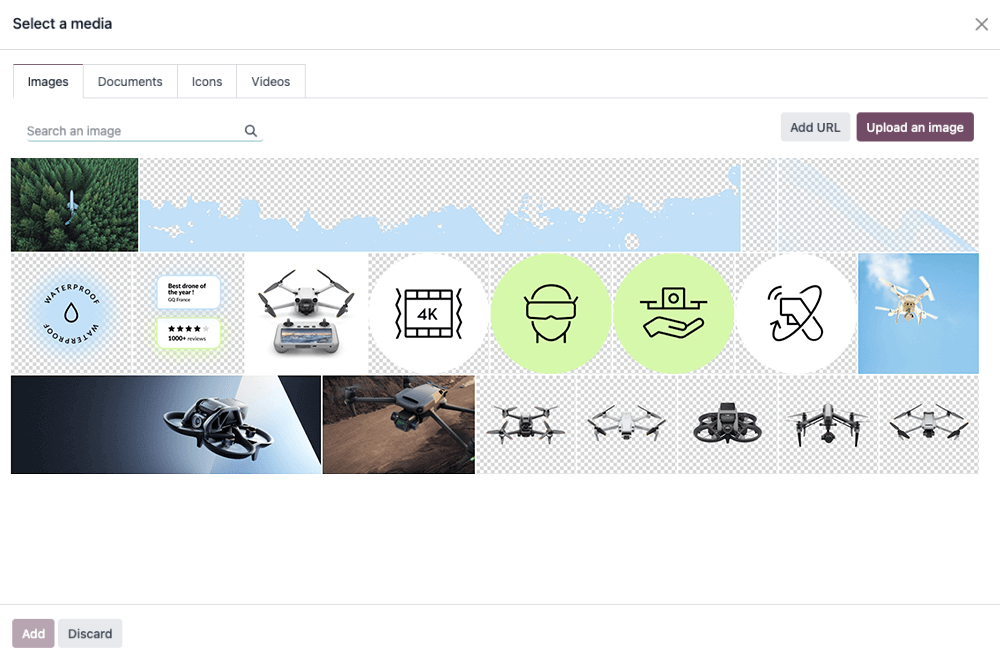
网站生成器支持以下图像文件格式:JPG、GIF、PNG 和 SVG。
警告
网站建立器提供的某些选项仅适用于注册到记录中的媒体。 You might not see some options if you add an image directly with a relative path to your module folder.
宣言
要在代码中使用图像并将它们包含在构建器的图库中(以便客户端可以重用它们),请像这样声明它们:
/website_airproof/data/images.xml¶<record id="img_about_01" model="ir.attachment">
<field name="name">About Image 01</field>
<field name="datas" type="base64" file="website_airproof/static/src/img/content/img_about_01.jpg" />
<field name="res_model">ir.ui.view</field>
<field name="public" eval="True" />
</record>
场地 |
描述 |
|---|---|
ID |
要在代码中使用的图像的名称 |
姓名 |
图像的描述性名称 |
数据 |
您的图像的位置 |
使用
常规图像
在 xml 模板中,按如下方式调用图像:
<img src="/web/image/website_airproof.img_about_01" alt="" />
img_about_01 是您为图像指定的 ID。
背景图片
<section style="background-image: url('/web/image/website_airproof.img_about_01');">
   <!-- Content -->
</section>
公司标志
对于公司标志来说,用途有点不同。首先在 website.xml 文件中声明它,然后使用正确的模板调用它。例如,要在标头内部调用,我们将使用 <t t-call="website.placeholder_header_brand">。
/website_airproof/data/images.xml¶<record id="website.default_website" model="website">
<field name="logo" type="base64" file="website_airproof/static/src/img/content/logo.png" />
</record>
注解
Here 您可以找到有关公司徽标设置和全球网站设置预设的更多信息。
小技巧
为了确保您的图像不会减慢网页速度并且不会过重,请尝试遵循以下几点:
重量:< 200Kb。
尺寸:如果不需要,不超过1500px。
扩展名:使用 svg 或 jpg、png 或 gif。
名称:没有空格、重音符号或特殊字符以及用破折号分隔的单词。尽可能使用相关词语。
大于 1920 像素的图像将被网站构建器严重压缩。如果 < 1920px,它们将保持不变。
视频
添加视频作为背景。
<section class="o_background_video" data-bg-video-src="...">
   <!-- Content -->
</section>
属性 |
描述 |
|---|---|
数据背景视频 src |
视频网址。 |
添加视频作为内容。
<div class="media_iframe_video" data-oe-expression="...">
   <div class="css_editable_mode_display" />
   <div class="media_iframe_video_size" contenteditable="false" />
   <iframe
      src="..."
      frameborder="0"
      contenteditable="false"
      allowfullscreen="allowfullscreen" />
</div>
属性 |
描述 |
|---|---|
数据表达 |
视频网址。 |
源代码 |
视频网址。 |
图标
默认情况下,Font Awesome 图标库包含在网站生成器中。您可以使用 CSS 前缀 fa 和图标名称将图标放置在任何位置。 Font Awesome 设计用于与内联元素一起使用。为了简洁起见,您可以使用 <i> 标记,但使用 <span> 在语义上更正确。
<span class="fa fa-picture-o" />
启用网站生成器样式选项。
<span class="fa fa-2x fa-picture-o rounded-circle" />
增加图标大小(fa-2x、fa-3x、fa-4x 或 fa-5x 类别)。
<span class="fa fa-2x fa-picture-o" />