布局
在本章中,您将学习如何:
创建自定义标头。
创建自定义页脚。
修改标准模板。
添加版权部分。
提高网站的响应能力。
默认
Odoo 页面结合了跨页面和独特元素。跨页面元素在每个页面上都是相同的,而唯一元素仅与特定页面相关。默认情况下,页面有两个跨页面元素:页眉和页脚,以及一个包含该页面特定内容的唯一主元素。
<div id="wrapwrap">
   <header/>
      <main>
         <div id="wrap" class="oe_structure">
            <!-- Page Content -->
         </div>
      </main>
   <footer/>
</div>
任何 Odoo XML 文件都以编码规范开头。之后,您必须将代码写入 <odoo> 标记内。
<?xml version="1.0" encoding="utf-8" ?>
<odoo>
   ...
</odoo>
注解
使用精确的模板名称对于快速查找所有模块中的信息非常重要。模板名称只能包含小写字母数字和下划线。
始终在文件末尾添加一个空行。这可以通过配置 IDE 自动完成。
X路径
XPath(XML 路径语言)是一种表达式语言,使您能够轻松地浏览 XML 文档中的元素和属性。 XPath 用于扩展标准 Odoo 模板。
视图按以下方式编码。
<template id="..." inherit_id="..." name="...">
   <!-- Content -->
</template>
属性 |
描述 |
|---|---|
ID |
修改后的视图ID |
继承的_id |
标准视图的 ID(使用以下模式: |
姓名 |
修改视图的人类可读名称 |
对于每个 XPath,您可以修改两个属性:表达式 和 位置。
Example
/website_airproof/views/website_templates.xml¶<template id="layout" inherit_id="website.layout" name="Welcome Message">
<xpath expr="//header" position="before">
<!-- Content -->
</xpath>
</template>
此 XPath 在页面内容之前添加欢迎消息。
警告
替换默认元素的属性时要小心。当您的主题扩展了默认主题时,您的更改将优先于任何未来的 Odoo 更新。
注解
每次创建新模板或记录时都应该更新模块。
继承视图的 XML ID 应使用与原始记录相同的 ID。它有助于一目了然地找到所有继承。由于最终的 XML ID 以创建它们的模块为前缀,因此不存在重叠。
表达式
XPath 使用路径表达式来选择 XML 文档中的节点。选择器在表达式内部使用来定位正确的元素。下面列出了最有用的。
后代选择器 |
描述 |
|---|---|
/ |
从根节点选择。 |
// |
从当前节点中选择文档中与选择相匹配的节点,无论它们位于何处。 |
属性选择器 |
描述 |
|---|---|
* |
选择任何 XML 标签。如果需要更精确的选择,可以将 |
*[@id=”id”] |
选择特定 ID。 |
*[hasclass(“类”)] |
选择特定类别。 |
*[@名称=“名称”] |
选择具有特定名称的标签。 |
*[@t-call=”t-call”] |
选择特定的 t 呼叫。 |
位置
该位置定义了代码在模板内的放置位置。下面列出了可能的值:
位置 |
描述 |
|---|---|
代替 |
将目标节点替换为 XPath 内容。 |
里面 |
在目标节点内添加 XPath 内容。 |
前 |
在目标节点之前添加 XPath 内容。 |
后 |
在目标节点后添加 XPath 内容。 |
属性 |
在属性内添加 XPath 内容。 |
Example
此 XPath 删除第一个具有 .breadcrumb 类的元素。
<xpath expr="//*[hasclass('breadcrumb')]" position="replace"/>
此 XPath 在 <ul> 元素的最后一个子元素之后添加了一个额外的 <li> 元素。
<xpath expr="//ul" position="inside">
   <li>Last element of the list</li>
</xpath>
此 XPath 在作为 <header> 的直接子级的 <nav> 之前添加 <div>。
<xpath expr="//header/nav" position="before">
   <div>Some content before the header</div>
</xpath>
此 XPath 删除标头的类属性中的 x_airproof_header。在这种情况下,您不需要使用 separator 属性。
<xpath expr="//header" position="attributes">
   <attribute name="class" remove="x_airproof_header" />
</xpath>
此 XPath 在标头的类属性中添加 x_airproof_header 。您还需要定义 separator 属性,以在要添加的类之前添加一个空格。
<xpath expr="//header" position="attributes">
   <attribute name="class" add="x_airproof_header" separator=" " />
</xpath>
- 此 XPath 将具有
.o_footer_scrolltop_wrapper类的元素移动到具有.o_footer_scrolltop_wrapper类的元素之前 footerID 属性。
<xpath expr="//div[@id='footer']" position="before">
   <xpath expr="//div[@id='o_footer_scrolltop_wrapper']" position="move" />
</xpath>
小技巧
在其他 XPath 中使用 move 指令会强制您仅使用此类指令。
Example
<xpath expr="//*[hasclass('o_wsale_products_main_row')]" position="before">
   <xpath expr="//t[@t-if='opt_wsale_categories_top']" position="move" />
</xpath>
<xpath expr="//*[hasclass('o_wsale_products_main_row')]" position="before">
   <div><!-- Content --></div>
</xpath>
<xpath expr="//*[hasclass('o_wsale_products_main_row')]" position="before">
   <xpath expr="//t[@t-if='opt_wsale_categories_top']" position="move" />
   <div><!-- Content --></div>
</xpath>
其他资料
您可以在此 cheat sheet 中找到有关 XPath 的更多信息。
QWeb
QWeb 是 Odoo 使用的主要模板引擎。它是一个XML模板引擎,主要用于生成HTML片段和页面。
t-call 指令可以接收参数:
<!-- Old way -->
<t t-call="portal.user_dropdown">
   <t t-set="_icon" t-value="True" />
   <t t-set="_item_class" t-valuef="dropdown" />
</t>

<t t-call="website.layout">
   <t t-set="additional_title">My page title</t>
</t>

<!-- New way (Parametric) -->
<t t-call="portal.user_dropdown"
   _icon="true"
   _item_class.f="dropdown" />

<t t-call="website.layout"
   additional_title.translate="My page title" />
属性(示例) |
描述 |
|---|---|
|
传递原始值(此处布尔值设置为 |
|
将值作为字符串传递 |
|
将值作为字符串传递 |
自定义字段
根据您的需要,您可以创建自定义字段以将数据保存在数据库中。
宣言
首先,创建一条记录来声明该字段。该字段必须链接到现有模型。
/website_airproof/data/fields.xml¶<record id="x_post_category" model="ir.model.fields">
<field name="name">x_post_category</field>
<field name="field_description">...</field>
<field name="ttype">html</field>
<field name="state">manual</field>
<field name="index">0</field>
<field name="model_id" ref="website_blog.model_blog_post" />
</record>
注解
也可以(并推荐)通过 a model using Python 创建字段。
后端
通过 XPath 将字段添加到相关视图。因此,用户可以在界面中看到该字段并随后填写。
/website_airproof/views/backend/website_blog_views.xml¶<record id="view_blog_post_form_category" model="ir.ui.view">
<field name="name">view_blog_post_form_category</field>
<field name="model">blog.post</field>
<field name="inherit_id" ref="website_blog.view_blog_post_form" />
<field name="arch" type="xml">
<xpath expr="//field[@name='blog_id']" position="before">
<field name="x_post_category" string="..." placeholder="..." />
</xpath>
</field>
</record>
前端
通过调用 model_name.field_name 可以将字段值显示在页面中的某个位置,如下所示:
/website_airproof/views/website_blog_templates.xml¶<h1 t-field="blog_post.x_post_category" />
背景
您可以将颜色或图像定义为网站的背景。
颜色
/website_airproof/static/src/scss/primary_variables.scss¶$o-color-palettes: map-merge($o-color-palettes,
(
'airproof': (
'o-cc1-bg': 'o-color-5',
'o-cc5-bg': 'o-color-1',
),
)
);
图像/图案
/website_airproof/static/src/scss/primary_variables.scss¶$o-website-values-palettes: (
(
'body-image': '/website_airproof/static/src/img/background-lines.svg',
'body-image-type': 'image' or 'pattern'
)
);
标头
默认情况下,标题包含两个不同的模板(桌面版和移动版),它们显示主导航、公司徽标和其他可选元素(号召性用语、语言选择器等)。根据情况,选择使用标准模板启用/禁用现有元素或构建全新的自定义模板。
标准
Odoo Website Builder 区分桌面模板和移动模板,以便于根据设备调整用户体验。
桌面模板
启用标头默认模板之一。
重要
不要忘记您可能需要首先禁用活动标头模板。
Example
/website_aiproof/data/presets.xml¶<record id="website.template_header_default" model="ir.ui.view">
<field name="active" eval="False" />
</record>
在 primary_variables.scss 文件中显式设置所需的模板。
/website_airproof/static/src/scss/primary_variables.scss¶$o-website-values-palettes: (
(
'header-template': 'stretch',
),
);
/website_airproof/data/presets.xml¶<record id="website.template_header_stretch" model="ir.ui.view">
<field name="active" eval="True" />
</record>
手机模板
每个标头模板都附带 template_header_mobile 模板,确保在每个设备上提供无缝的用户体验。
风俗
创建您自己的模板并将其添加到列表中。
重要
不要忘记,您可能需要先禁用活动标头模板,然后再启用自定义标头模板。
选项
使用以下代码在网站生成器上为新的自定义标头添加选项。
/website_airproof/static/src/website_builder/header_template_option.xml¶<t t-name="website_airproof.HeaderTemplateOption" t-inherit="website.HeaderTemplateOption" t-inherit-mode="extension">
<xpath expr="//BuilderRow[@label.translate='Template']//BuilderSelect" position="inside">
<BuilderSelectItem
id="'header_airproof_opt'"
title.translate="Airproof"
actionParam="[
{
action: 'websiteConfig',
actionParam: {
views: ['website_airproof.header'],
vars: { 'header-template': 'airproof' },
checkVars: false,
},
},
]">
<Img src="'/website_airproof/static/src/img/wbuilder/template-header-opt.svg'" attrs="{ style: 'width: calc(100% - 0.5rem);' }" />
</BuilderSelectItem>
</xpath>
</t>
属性 |
描述 |
|---|---|
意见 |
要启用的模板 |
变量 |
赋予变量的名称(与 |
检查变量 |
确定是否比较 |
src(在 |
网站生成器上的模板选择中显示的自定义模板的缩略图 |
现在您必须在 Odoo SASS 变量中明确定义要使用自定义模板。
/website_airproof/static/src/scss/primary_variables.scss¶$o-website-values-palettes: (
(
'header-template': 'airproof',
),
);
模板
/website_airproof/views/website_templates.xml¶<template id="header" inherit_id="website.layout" name="Airproof - Header" active="True">
<xpath expr="//header//nav" position="replace">
<!-- Static Content -->
<!-- Components -->
<!-- Editable areas -->
</xpath>
</template>
不要忘记相应地调整 template_header_mobile 以保持桌面和移动设备之间的一致性:
website_airproof/views/website_templates.xml¶<template id="template_header_mobile" inherit_id="website.template_header_mobile" name="Airproof - Template Header Mobile">
<!-- Xpaths -->
</template>
成分
在自定义标头中,您可以使用 QWeb 中的 t-call 指令调用多个子模板:
标识
<t t-call="website.placeholder_header_brand"
   _link_class.f="..." />
重要
不要忘记在数据库中添加 create a record of the website logo 标志。
登入
<t t-call="portal.placeholder_user_sign_in"
   _item_class.f="nav-item"
   _link_class.f="nav-link" />
用户下拉菜单
<t t-call="portal.user_dropdown"
   _user_name="true"
   _icon="false"
   _avatar="false"
   _item_class.f="nav-item dropdown"
   _link_class.f="nav-link"
   _dropdown_menu_class.f="..." />
语言选择器
<t t-call="website.placeholder_header_language_selector"
   _div_classes.f="..." />
号召性用语
<t t-call="website.placeholder_header_call_to_action"
   _div_classes.f="..." />
版权
目前版权栏只有一种可用模板。
要替换内容或修改其结构,您可以将自己的代码添加到以下 XPath 中。
/website_airproof/views/website_templates.xml¶<template id="copyright" inherit_id="website.layout">
<xpath expr="//div[hasclass('o_footer_copyright')]" position="replace">
<div class="o_footer_copyright" data-name="Copyright">
<!-- Content -->
</div>
</xpath>
</template>
降落区
您可以创建构建块(片段)并让用户选择拖放它们的位置,从而自行创建页面布局,而不是定义页面的完整布局。我们称之为“模块化设计”。
您可以定义一个空白区域,用户可以用片段填充该区域。
<div id="oe_structure_layout_01" class="oe_structure" />
班级 |
描述 |
|---|---|
oe_结构 |
为用户定义拖放区域。 |
oe_结构_独奏 |
该区域只能放置一个片段。 |
oe_struct_not_nearest |
如果一个构建块被丢弃到具有此类的放置区之外,则该块将被移动到最近的放置区。 |
您还可以使用您的内容填充现有的放置区域。
<template id="oe_structure_layout_01" inherit_id="..." name="...">
   <xpath expr="//*[@id='oe_structure_layout_01']" position="replace">
      <div id="oe_structure_layout_01" class="oe_structure oe_structure_solo">
         <!-- Content -->
      </div>
   </xpath>
</template>
反应灵敏
Odoo 通常依赖于 Bootstrap 框架,该框架可以简化网站在桌面和移动设备上的响应能力。主要可以从3个方面采取行动:
根据设备自动计算字体大小
桌面上的列大小(移动设备上的列会自动堆叠)
可见性条件(在桌面/移动设备上显示/隐藏某些内容)
字体大小
在 Bootstrap 5 中,默认启用响应式字体大小,允许文本在设备和视口大小之间更自然地缩放(依赖于 $enable-rfs 变量)。
色谱柱尺寸
Bootstrap 使用由行和列组成的网格来布局页面。由于这种结构,列在移动设备和桌面设备上的大小可以不同。在此版本中,网站生成器允许设置移动尺寸(例如 col-12)和桌面尺寸(例如 col-lg-4),但不允许设置中等断点(例如 col-md-4)。
警告
可以设置中等尺寸,但最终用户无法在网站生成器中编辑它们。
能见度条件
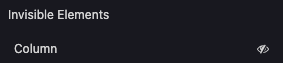
- 在 Odoo Website Builder 中,可以在移动设备或桌面设备上隐藏整个部分或特定列。
此功能利用 Bootstrap 以及 Odoo 特定的类:
o_snippet_mobile_invisibleo_snippet_desktop_invisible
隐藏桌面上的一个部分:
<section
   class="s_text_block o_cc o_cc1 o_colored_level pt16 pb16 d-lg-none o_snippet_desktop_invisible"
   data-snippet="s_text_block"
   data-name="Text">
   <!-- Content -->
</section>
在移动设备上隐藏列:
<section
   class="s_text_block o_cc o_cc1 o_colored_level pt16 pb16"
   data-snippet="s_text_block"
   data-name="Text">
   <div class="container s_allow_columns">
      <div class="row">
         <div class="col-12 col-lg-6 d-none d-lg-block o_snippet_mobile_invisible">
            Column 1
         </div>
         <div class="col-12 col-lg-6">
            Column 2
         </div>
      </div>
   </div>
</section>
班级 |
描述 |
|---|---|
o_snippet_mobile_invisible |
它告诉网站构建器该元素已隐藏并且正在使用可见性条件选项。 |
o_snippet_desktop_invisible |
它告诉网站构建器该元素在桌面上隐藏**并且**正在使用可见性条件选项。 |
d-无 |
在每种情况下隐藏该元素。 |
d-lg-块 |
显示来自“大”断点(在桌面上)的元素。 |
重要
- 必须指定
o_snippet_mobile_invisible/o_snippet_desktop_invisible类才能保留 可见性条件选项起作用。即使某个元素隐藏在桌面上,网站生成器也会显示这些元素的列表,允许最终用户强制显示该元素并对其进行编辑,而无需在移动和桌面模式之间切换。