


第 4 章 - 定制,第二部分
创建自定义背景形状
形状是可应用于背景或图像的装饰元素。它们是 SVG 文件,可以制作动画并使用不同的颜色进行自定义。
为了更好地符合网站所需的氛围,请创建客户可以在不同块上重复使用的自定义背景形状。
使用以下设置创建自定义形状:
宣告你的身材。您可以找到原始的 SVG shape here。
将形状的基色设置为主题的绿色,并将其添加到可用形状列表中。

其他资料
请参阅有关如何添加 custom background shapes 的参考文档。

小技巧
在我们的密封示例中找到以下解决方案:
shapes.xml 上的形状声明(将 SVG 添加到正确的形状文件夹后)。
通过 primary_variable.scss 文件设置形状的样式。
通过新文件 background_shapes_option_plugin.js 将形状添加到形状列表中。不要忘记在
website.website_builder_assets部分的 __manifest__.py 中声明它。
基于 Airproof 设计,将您刚刚添加的形状应用到主页上的
Text-Image构建块中:确保形状位于正确的位置。
将其颜色设置为主题的浅蓝色。
其他资料
请参阅有关如何使用 background shapes 的参考文档。

小技巧
与通过网站生成器应用的形状不同,我们不使用 o_html_builder_xxx 类。您必须将 html_builder 替换为您在主要变量中为形状设置的名称。
/website_airproof/data/pages/home.xml¶<!-- Text-image block & Background shape -->
<section class="s_text_image o_cc o_cc3 o_colored_level pt120 pb96"
data-snippet="s_image_text" data-name="Image - Text" style="background-color: rgb(41, 128, 187);"
data-oe-shape-data="{'shape': 'website_airproof/waves/01', 'colors': {'c1': '#BBE1FA'}, 'flip': ['x']}">
<div class="o_we_shape o_website_airproof_waves_01 o_we_flip_x" style="background-image:
url('/html_editor/shape/website_airproof%2Fwaves%2F01.svg?c1=%23BBE1FA');
background-position: 100% 100%;"/>
[...]
</section>
创建自定义图像形状
同样,为图像创建自定义形状。通过创建您可以重用的 shape ,已经为您完成了部分工作。

现在开始将形状集成到您的主题中。为此,只需执行以下几个步骤:
创建网站生成器的预览。
将主题中的深蓝色应用到垂直线上。
要通过网站生成器使用它,请添加将未来用户上传的图像链接到此形状的标签。
最后,将形状添加到网站生成器可用图像的形状列表中。
其他资料
请参阅有关如何创建 custom image shape 的参考文档。

在我们的 Airproof 示例中找到解决方案:
将形状添加到正确的文件夹后,使用形状预览完成此文件。
/website_airproof/static/image_shapes/duo/01.svg¶<svg viewBox="0 0 1 1" id="preview" preserveAspectRatio="none">
<use xlink:href="#filterPath" fill="darkgrey"/>
</svg>
调整垂直线的颜色:
/website_airproof/static/image_shapes/duo/01.svg¶<svg viewBox="0 0 1 1" preserveAspectRatio="none">
<rect class="background" x="0.494" y="0.325" width="0.0125" height="0.35" rx="0.00625" ry="0.00625"
fill="#7C6576"/>
</svg>
添加图像标签
/website_airproof/static/image_shapes/duo/01.svg¶<image xlink:href="" clip-path="url(#clip-path)">
<animateMotion dur="1ms" repeatCount="indefinite"/>
</image>
使用此 JS 文件 image_shapes_option_plugin.js 将其添加到图像形状列表中。
完成此操作后,将此形状应用到您为上一个练习创建的构建块的图像上。并将绿色应用到形状的垂直线上。
其他资料
请参阅有关如何 use image shapes 的参考文档。

/website_airproof/data/pages/home.xml¶<img src="/html_editor/image_shape/website_airproof.img_drone_flying/website_airproof/duo/01.svg"
class="img img-fluid" alt="Drone flying"
data-shape="website_airproof/duo/01" data-shape-colors=";#BBE1FA;;;"
data-mimetype="image/svg+xml"
data-mimetype-before-conversion="image/webp"
data-original-src="website_airproof/static/src/img/content/drone-flying.webp"
data-file-name="drone-flying.svg"/>
创建自定义渐变
接下来,让我们向背景添加渐变。为了增强页面的活力,请将从蓝色 rgb(11, 142, 230) 到深蓝色 rgb(41, 128, 187) 的渐变应用于“最新产品”块。但在此之前,请将渐变添加到网站构建器中,以便客户端可以轻松地重用它。
其他资料
请参阅有关如何应用 gradients 以及如何创建 custom gradients 的参考文档。
创建 color_picker_gradient_tab.js 文件以创建自定义渐变并将其添加到网站生成器选项中。
在
manifest中声明您的文件。警告
不要忘记与网站构建器选项行为相关的文件是在捆绑包
website.website_builder_assets中声明的。将其应用到 homepage 上的“最新产品”部分背景。
/website_airproof/data/pages/home.xml¶<!-- Latest products section --> <section data-snippet="s_dynamic_snippet_products" data-name="Products" class="..." data-custom-template-data="{}" data-number-of-records="16" data-product-category-id="all" data-show-variants="true" data-filter-id="3" data-template-key="website_airproof.dynamic_filter_template_product_product_airproof" data-carousel-interval="5000" data-number-of-elements="4" data-number-of-elements-small-devices="2" style="background-image: linear-gradient(0deg, rgb(41, 128, 187) 0%, rgb(11, 142, 230) 100%) !important; --o-wsale-products-grid-gap: 16px;"> [...] </section>
动画
客户喜欢整体设计,但发现页面有点静态。使用 fade-in、rotate、bounce 等动画增强页面交互性。这些可以应用于列、图像、文本、按钮…
基于密封设计,对以下元素进行动画处理:
轮播的第一张幻灯片的文本。
第一张幻灯片中的贴纸和无人机照片。
带图标的 4 列。
调整动画延迟以获得更平滑的过渡。
其他资料
请参阅有关如何应用 动画 的参考文档。

在 home.xml 上的密封示例中找到解决方案。
<img src="/web/image/website_airproof.img_sticker" class="img img-fluid position-absolute
x_sticker o_animate o_anim_rotate_in o_visible" style="animation-delay: 0.8s;
--wanim-intensity: 30;"/>

<img src="/web/image/website_airproof.img_drone" class="img img-fluid o_animate
o_anim_zoom_out o_visible" alt="Drone"/>
<span class="o_animated_text o_animate o_anim_fade_in o_anim_from_bottom o_visible">One
step</span>
<div class="o_grid_item o_colored_level g-height-7 g-col-lg-3 col-lg-3 text-center
o_anim_fade_in o_animate o_anim_from_bottom o_visible" style="z-index: 2;
grid-area: 6 / 1 / 12 / 4; --wanim-intensity: 15;">
</div>
表格
Odoo 中的表单非常强大。他们可以将电子邮件直接发送到个人收件箱或直接与其他 Odoo 应用程序集成。这很棒,因为客户的主要优先事项之一是售后服务。因此,必须正确配置联系表。
基于密封设计,创建联系页面。请记住禁用默认链接并将新页面链接添加到菜单中。客户对联系表有以下要求:
*姓名*和*电子邮件地址*字段。
*公司名称*字段。
仅当填写*公司名称*时,才会显示*有条件增值税*字段。
除*公司名称*外,所有字段均应为必填字段。
表单提交必须触发电子邮件。
提交表单后,
thank-you message应在联系页面上保持可见。
小技巧
要确定表单的正确代码:
- 通过网站生成器创建测试页面。拖放您感兴趣的构建块并应用正确的设计。使用通过 Editor HTML/SCSS 生成的代码。
您还可以在 Odoo 中找到原始构建块代码:odoo/addons/website/views/snippets/s_website_form.xml。
在 contact.xml 上的密封示例中找到解决方案。
创建页面模板
您没有时间为客户创建所有服务页面。不用担心!创建一个模板页面,客户端可以使用该模板页面来构建自己的服务页面。
该页面的组成应如下:
Parallax 构建块,
Key benefits 构建块,其标题替换为“发现我们的服务”,
Call to action 构建块,
您的自定义轮播片段。
其他资料
请参阅有关如何创建 page templates 的参考文档。
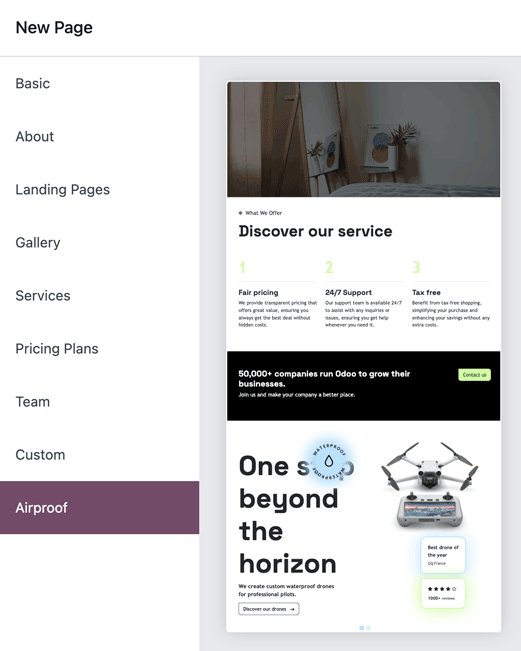
创建您的
new_page_template_templates.xml文件并在我们的 Airproof example 中发现其内容。不要忘记在
__manifest__.py文件中声明您的文件并定义模板页面包含的内容。/website_airproof/__manifest__.py¶'data': [ # ... 'views/new_page_template_templates.xml', ], 'assets': { # ... }, 'new_page_templates': { 'airproof': { 'services': ['s_parallax', 's_airproof_key_benefits_h2', 's_call_to_action', 's_airproof_carousel'] } },