


奥多编辑器
Odoo Editor 是 Odoo 自己的富文本编辑器。其来源可在 odoo-editor directory 中找到。
电源箱
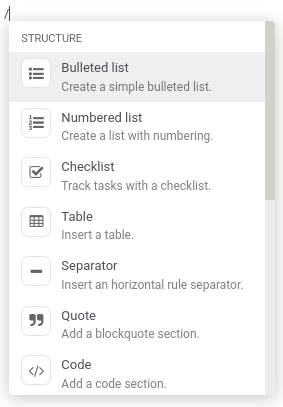
Powerbox 是一个用户界面,其中包含组织成 categories 的 commands。在编辑器中输入 / 时会出现。当用户输入文本时可以过滤命令,并使用箭头键导航。
修改电源盒
此时只应实例化一个 Powerbox,该工作由编辑器本身完成。其 Powerbox 实例可以在其 powerbox 实例变量中找到。要更改 Powerbox 的内容和选项,请在实例化编辑器之前更改传递给编辑器的选项。
重要
切勿自行实例化 Powerbox。始终使用当前编辑器自己的实例。
Example
假设我们要向 Powerbox 添加一个新命令 Document,仅用于 mass_mailing 模块。我们希望将其添加到名为 Documentation 的新类别中,并且希望它始终位于 Powerbox 的顶部。
mass_mailing extends web_editor 的 Wysiwyg class,它在其 start 方法中实例化编辑器。在此之前,它会调用自己的 _getPowerboxOptions 方法,可以方便地覆盖该方法以添加我们的新命令。
由于 mass_mailing 已经覆盖 _getPowerboxOptions,我们只需向其中添加新命令即可:
_getPowerboxOptions: function () {
    const options = this._super();
    // (existing code before the return statement)
    options.categories.push({
        name: _t('Documentation'),
        priority: 300,
    });
    options.commands.push({
        name: _t('Document'),
        category: _t('Documentation'),
        description: _t("Add this text to your mailing's documentation"),
        fontawesome: 'fa-book',
        priority: 1, // This is the only command in its category anyway.
    });
    return options;
}
重要
为了允许翻译命令和类别的名称和描述,请确保将它们包装在 _t 函数中。
小技巧
为了避免失控的升级,请勿对优先级使用随机数:查看已存在的其他优先级并相应地选择您的值(就像对 z-index 所做的那样)。
打开自定义 Powerbox
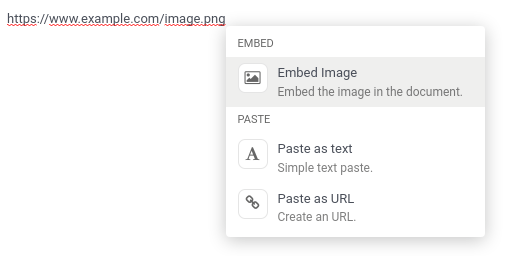
可以使用一组自定义类别和命令打开 Powerbox,绕过所有预先存在的类别和命令。为此,请调用 Powerbox 的 open 方法并向其传递您的自定义命令和类别。
Example
我们需要 Powerbox 的当前实例,可以在当前编辑器中找到它。在 Wysiwyg class 中,您会发现它是 this.odooEditor.powerbox。
现在使用自定义“文档”类别中的自定义“文档”命令打开它:
this.odooEditor.powerbox.open(
    [{
        name: _t('Document'),
        category: _t('Documentation'),
        description: _t("Add this text to your mailing's documentation"),
        fontawesome: 'fa-book',
        priority: 1, // This is the only command in its category anyway.
    }],
    [{
        name: _t('Documentation'),
        priority: 300,
    }]
);
过滤命令
过滤命令有以下三种方式:
通过
powerboxFiltersPowerbox option。通过给定的 command 的
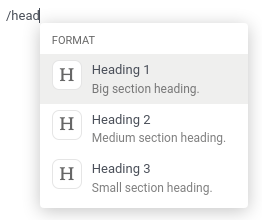
isDisabled条目。用户只需在打开 Powerbox 后键入文本即可过滤命令。它将将该文本与类别和命令的名称进行模糊匹配。
参考
类别
姓名 |
类型 |
描述 |
|---|---|---|
|
|
类别名称 |
|
|
用于对类别进行排序:具有较高优先级的类别在 Powerbox 中显示在较高位置(具有相同优先级的类别按字母顺序排序) |
注解
如果存在多个同名类别,则将它们归为一类。它的优先级将是最后声明的类别版本中定义的优先级。
命令
姓名 |
类型 |
描述 |
|---|---|---|
|
|
命令的名称 |
|
|
命令所属类别的名称 |
|
|
描述命令的简短文本 |
|
|
将用作命令图标的 Font Awesome 的名称 |
|
|
用于对命令进行排序:具有较高优先级的命令在 Powerbox 中显示得较高(具有相同优先级的命令按字母顺序排序) |
|
|
选择命令时执行的函数(可以是异步的) |
`isDisabled`(可选) |
|
用于在某些条件下禁用该命令的函数(当它返回`true`时,该命令将被禁用) |
注解
如果命令指向尚不存在的类别,则将创建该类别并将其附加到 Powerbox 的末尾。
选项
以下选项可以传递给 OdooEditor,然后传递给 Powerbox 的实例:
姓名 |
类型 |
描述 |
|---|---|---|
|
|
添加到编辑器定义的默认值的命令 |
|
|
添加到编辑器定义的默认类别 |
|
|
用于过滤 Powerbox 中显示的命令的函数 |
|
|
返回编辑器祖先的 |